Painting contractors
Commercial painting contractor software for WIP and cash you can trust.
Estimate by the square foot or by the room from your price book, track crew progress from the field, and see WIP and a 13-week cash forecast that update as walls get finished. On top of QuickBooks Online.
What painting subs deal with.
Labor is most of the job
When labor is 60% or more of cost, percent complete has to come from the field. Crews log progress against the estimate's labor lines.
Punch lists and touch-ups drag on
The last 10% of a job can sit for weeks. WIP shows what's earned and unbilled so retainage and final billing don't get forgotten.
Many small jobs at once
Dozens of open jobs make month-end WIP a chore. SubDesk keeps it current every day, across every job.
One job, start to finish, one system.
Example jobTempe Office Tower, floors 3–6: carpet tile, wall base and transitions
Step 1 of 8: Lead
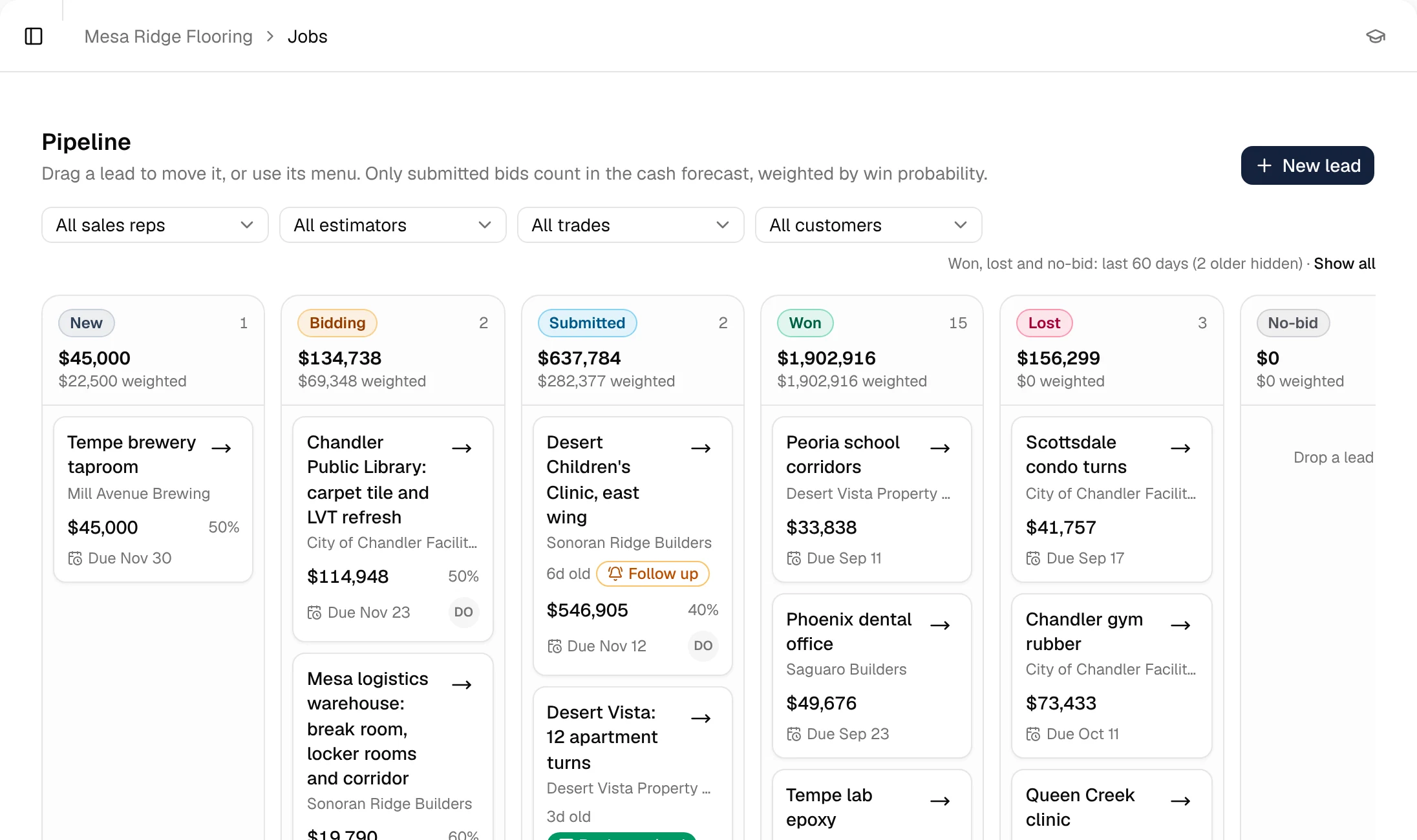
The bid invite lands in your pipeline.
The GC sends the bid invite. It goes straight into your pipeline with the due date and the bid value.
Step 2 of 8: Estimate
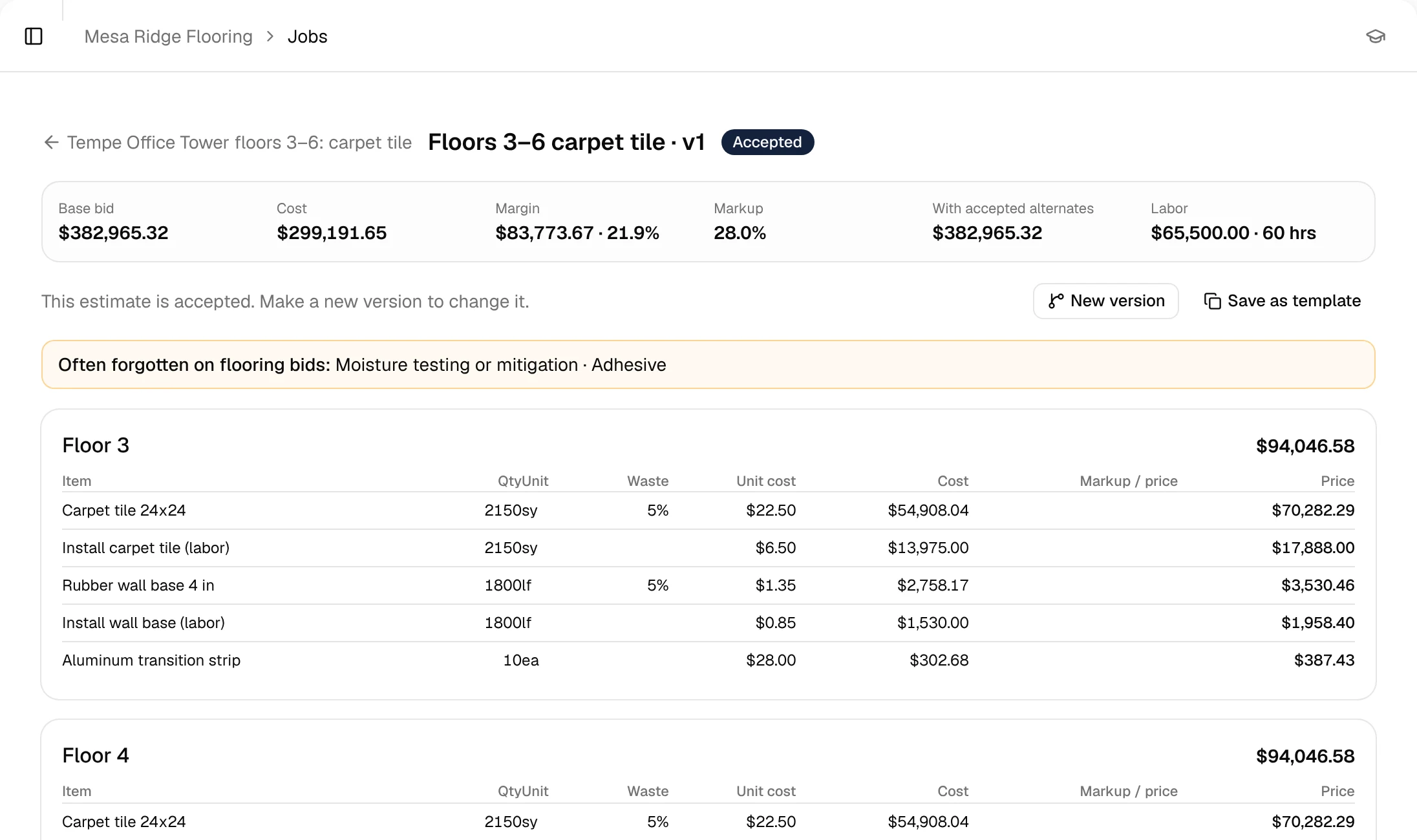
Build it from your price book.
Labor and material lines by area, priced from your own price book, with cost, markup and margin as you go.
Step 3 of 8: Proposal
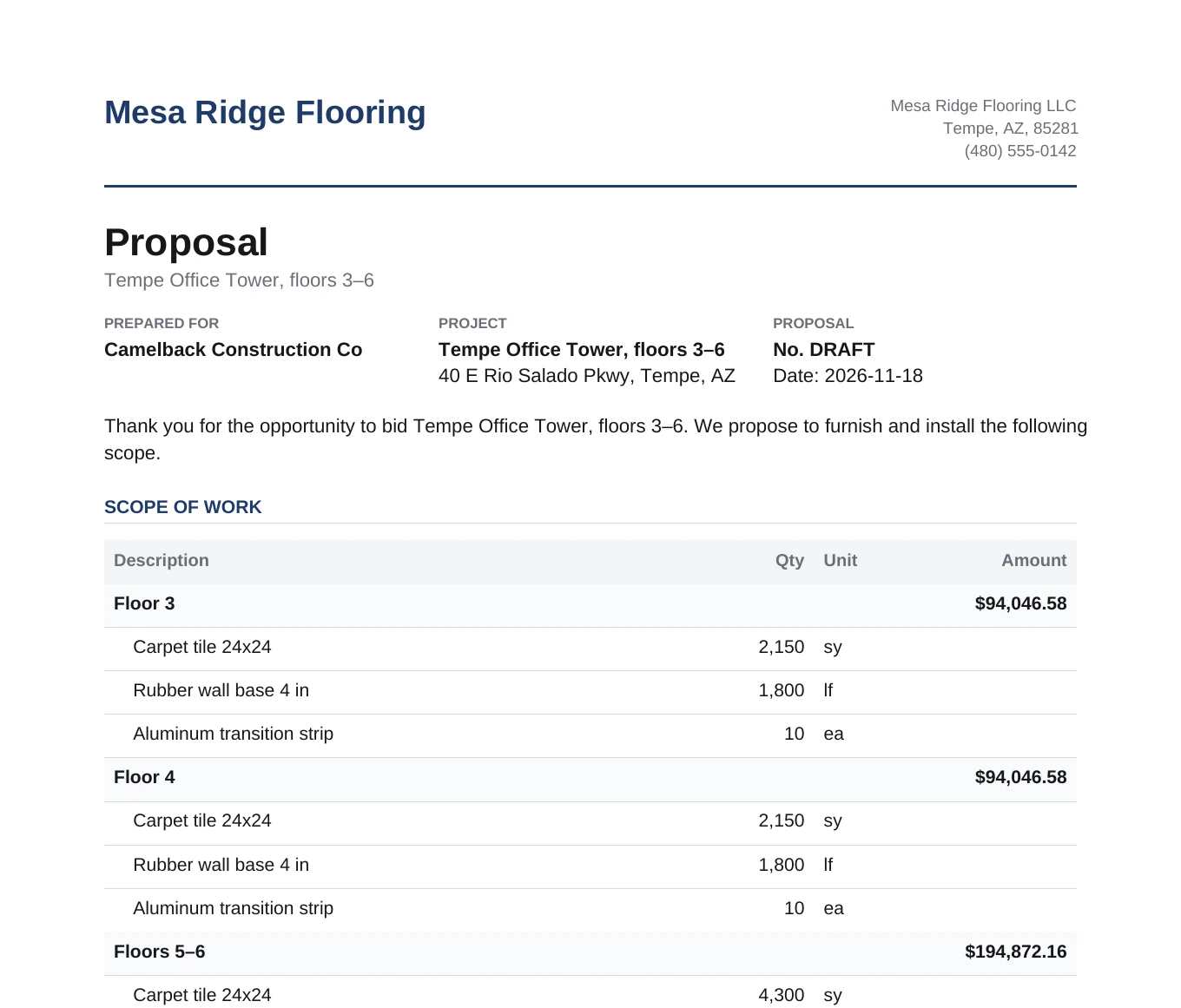
Send a branded proposal. Mark it won.
The proposal comes straight from the estimate, with your scope, exclusions and terms. When the GC awards it, it becomes a job.
Step 4 of 8: Job
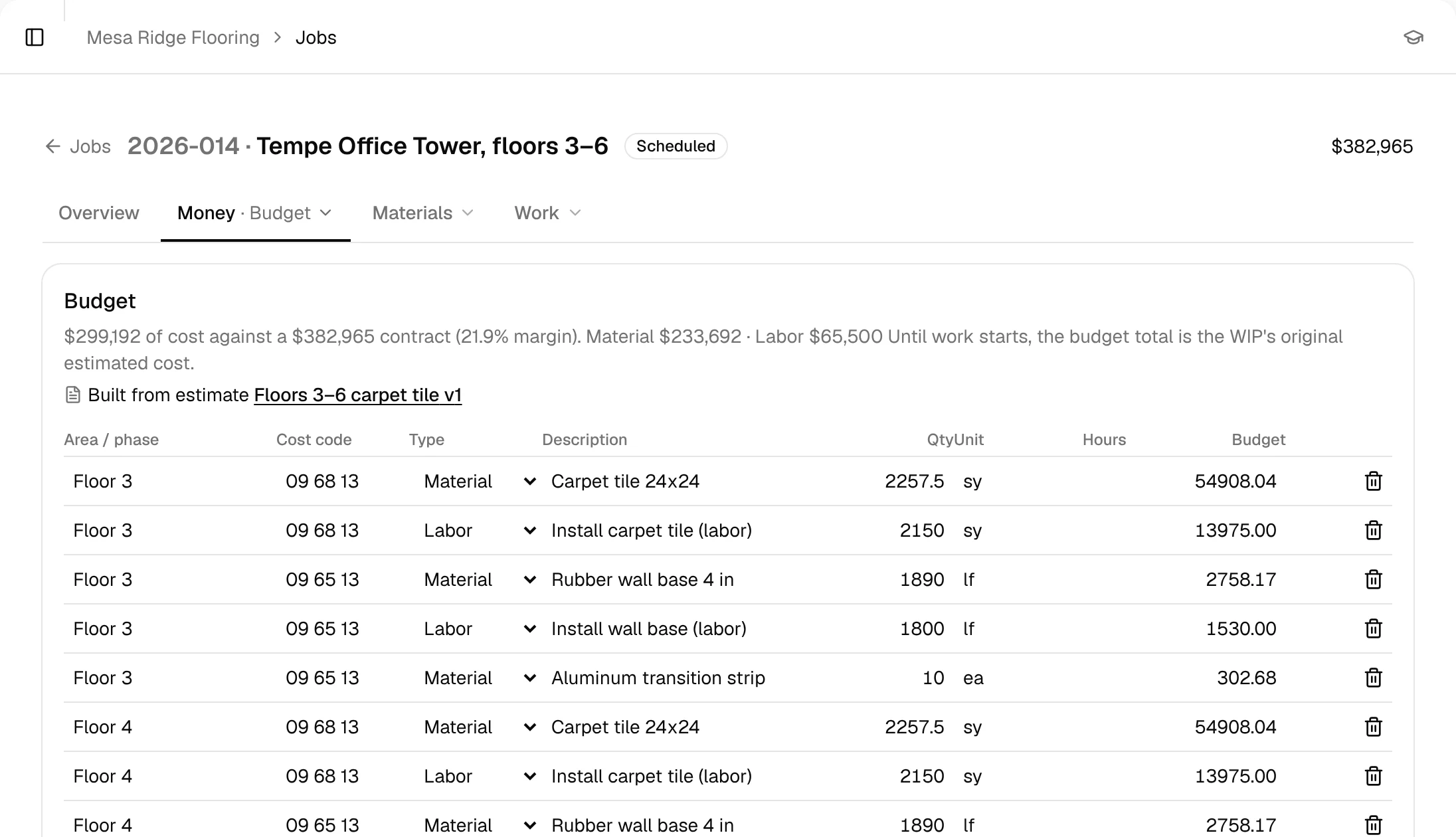
The estimate becomes the job budget.
No re-keying. Every estimate line becomes a budget line on the job, so cost tracking starts on day one.
Step 5 of 8: Field
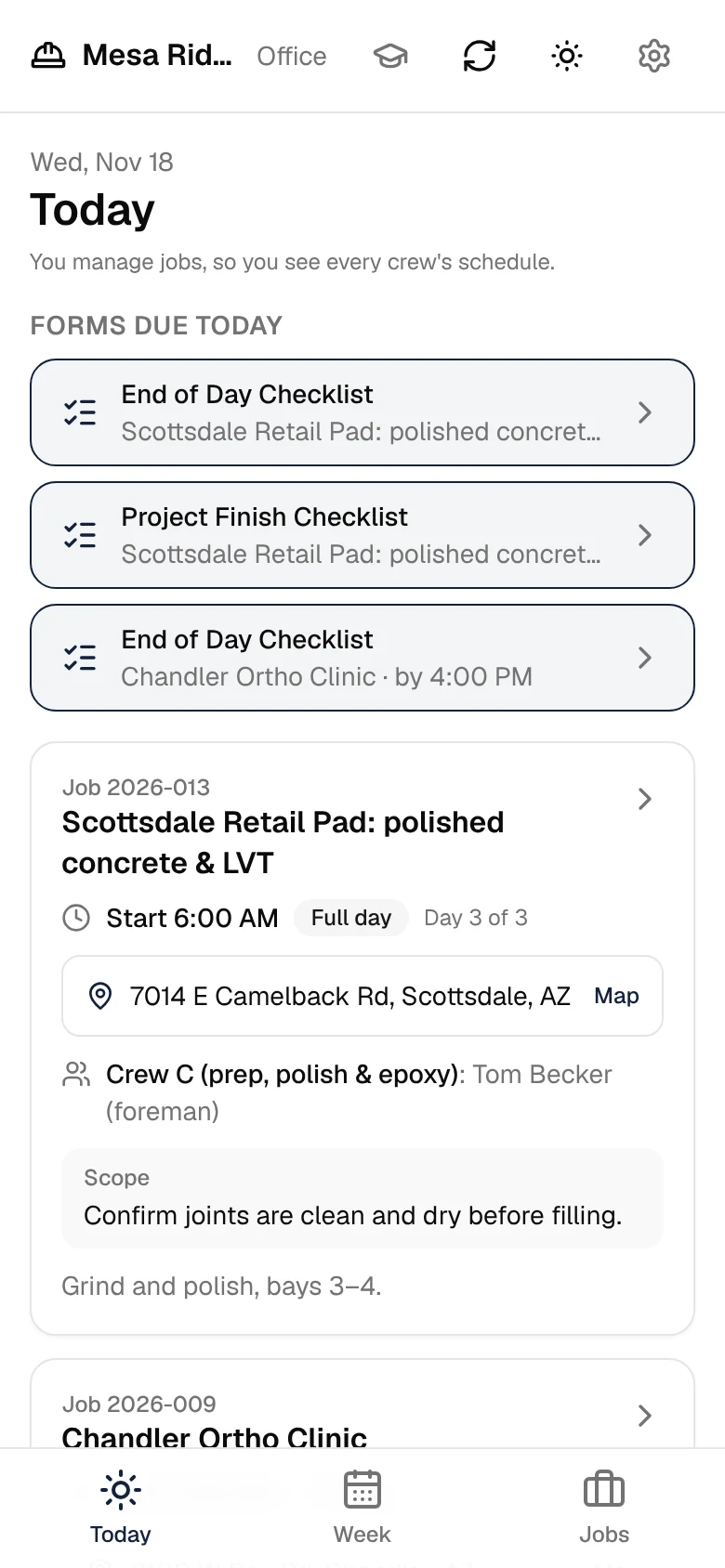
Crews log progress from the field mobile app.
Foremen see their day, fill out their forms and post progress, notes and photos from their phones.
Step 6 of 8: Purchasing
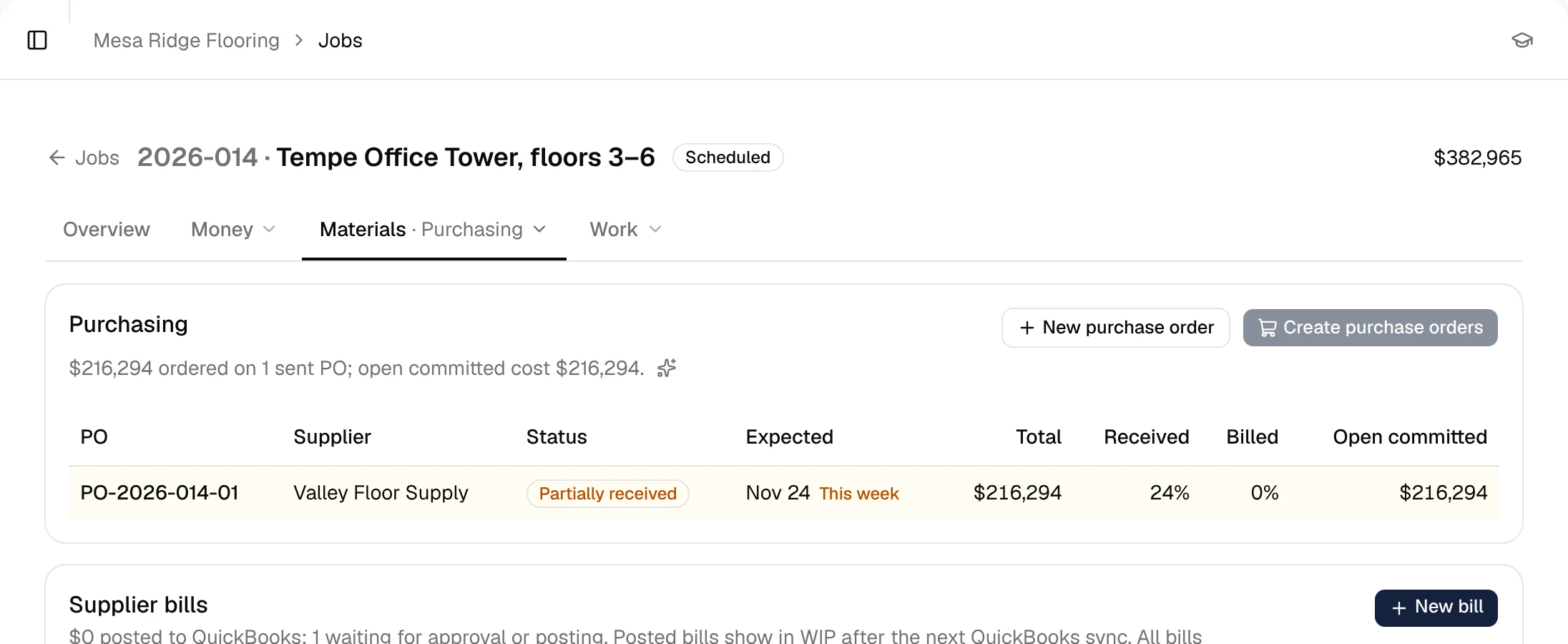
POs and receiving, tied to the job.
Order material against the job budget, mark it received when it shows up on site, and match the supplier's bill.
Step 7 of 8: WIP & billing
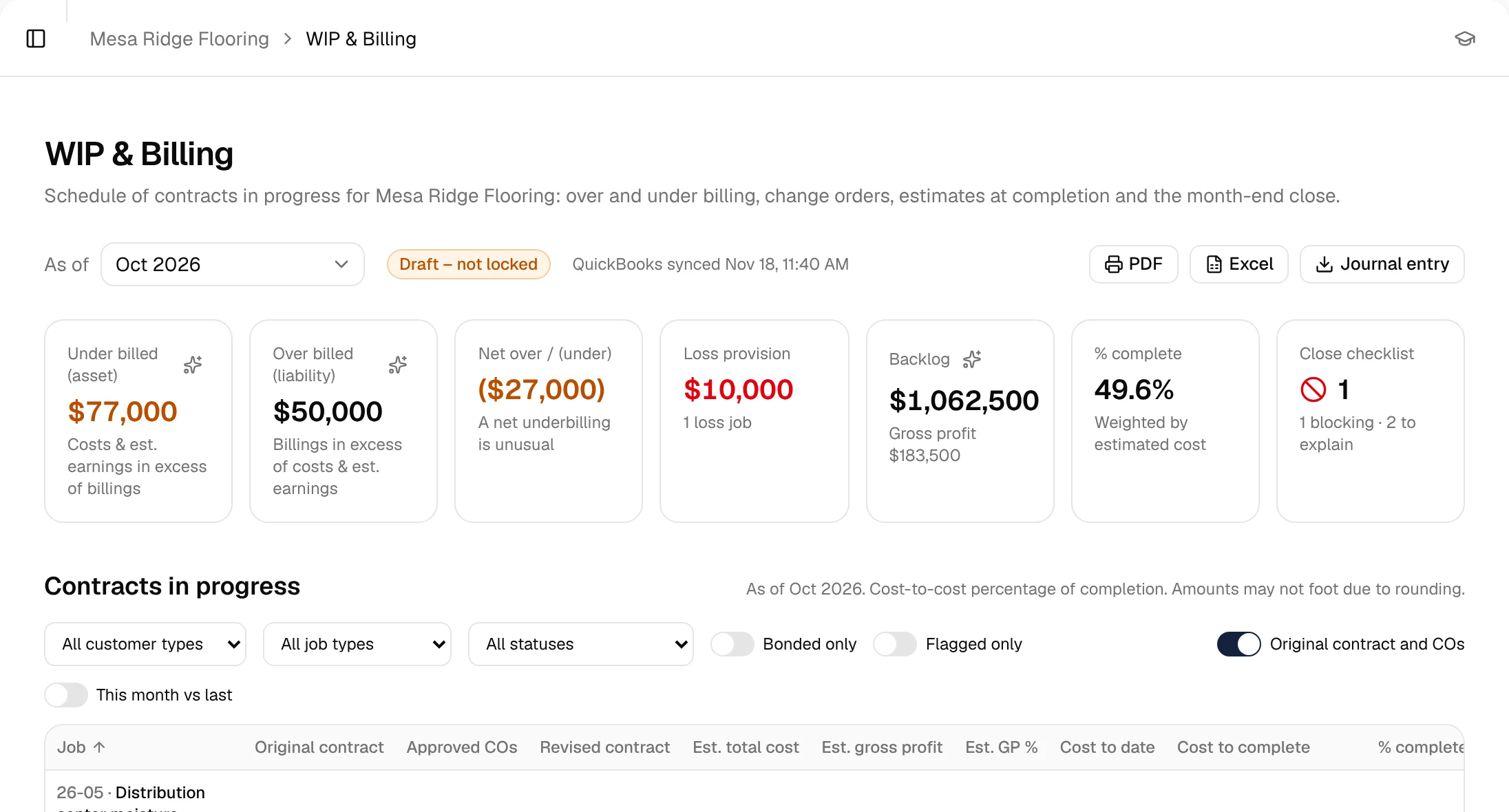
Percent complete, over/under billing, what to bill.
Costs and field progress roll into WIP every day, so you know what to bill this month without a spreadsheet.
Step 8 of 8: Cash forecast
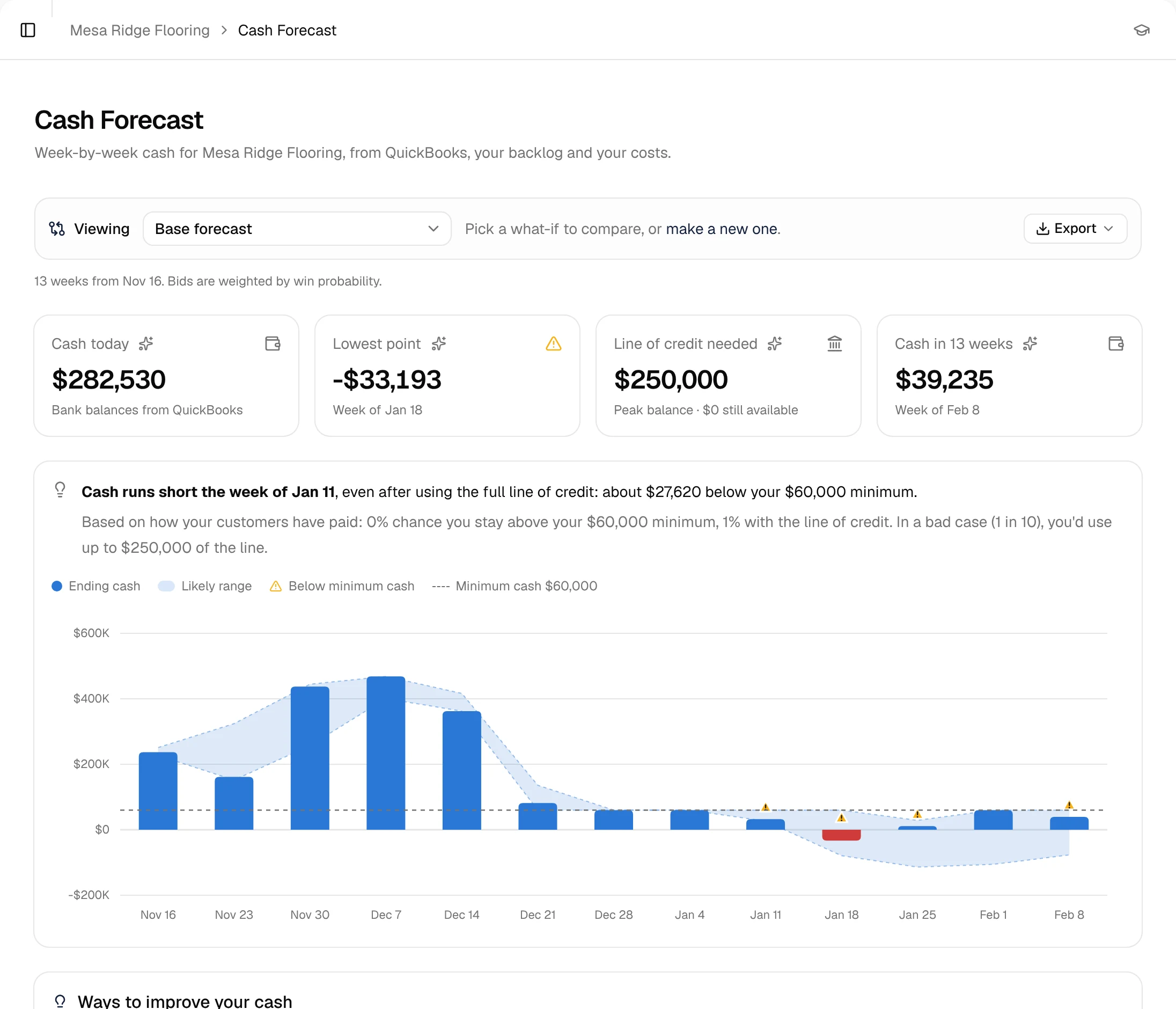
Every job rolls into your company-wide forecast.
Billings and costs from every job land in your 13-week cash forecast, next to payroll and your bills. Tight weeks show up before you're in them.
Every step feeds the next. That's why the forecast is right.
Two halves. One flow of data.
Run the jobs and see the money in the same place. The jobs side is what keeps the forecast accurate.
Run the work
- Pipeline
- Estimating & price book
- Proposals
- Field app
- Purchase orders & receiving
- Writes to QuickBooks
See the cash
- 13-week cash forecast
- WIP & over/under billing
- Billing
- AI chat over your own numbers
- Live bank balances
- Payroll via Gusto
Know your cash for the next 13 weeks.
Billings from live jobs, your bills, payroll and bank balance in one weekly view. See the tight weeks before you're in them.
Learn more: Cash ForecastWIP that's current every day, not once a month.
Percent complete from real costs, over/under billing per job, and what to bill this month.
Learn more: WIP & BillingEvery job starts with a budget.
The won estimate becomes the job budget, line for line. Track cost against it as POs, bills and field updates come in.
Learn more: JobsProgress from the people doing the work.
Crews post progress, notes and photos from their phones, with no second login for every tool.
Learn more: Field AppMaterial ordered against the job, not a guess.
Purchase orders and receiving tied to each job, so committed cost shows up before the bill does.
Learn more: PurchasingAsk your numbers a question.
"Which jobs are under-billed?" "When is cash tightest, and what would help?" Answers come from your own data, with the figures it used.
Learn more: AI Chat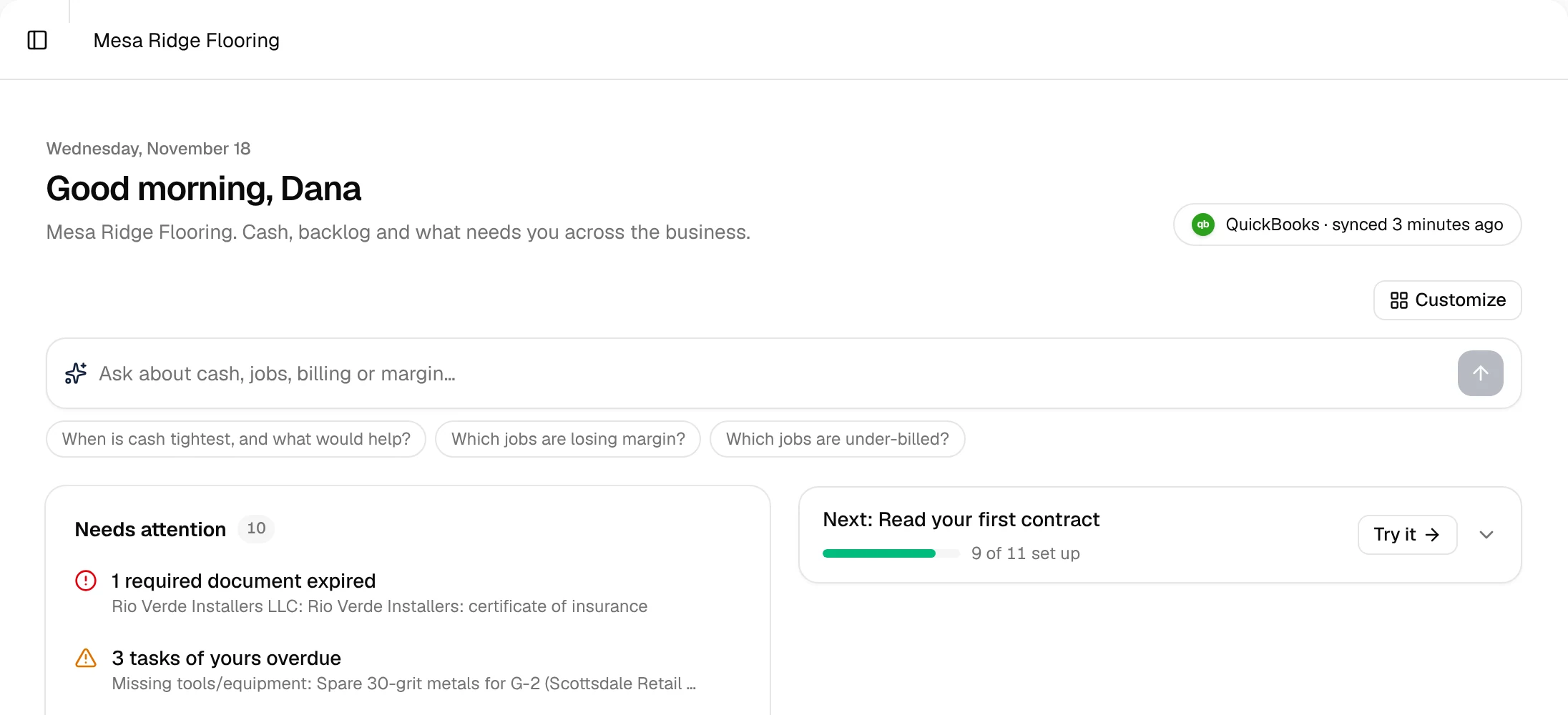
Painting questions
Does it work with QuickBooks Time?
Yes. Crew hours from QuickBooks Time land on the job, next to costs and field progress.
Can I estimate by room or by square foot?
Yes. Price book items carry their own unit, so you can price by sf, room, door or lot.
Other trades we're built for.
Flooring
Price LVT, carpet tile and prep by the square foot, and see every job's cash in one place.
FlooringConcrete
Track pours, pump and ready-mix costs per job, and see the cash impact of every pour schedule.
ConcreteDrywall
Framing, board and finish on one job budget, with over/under billing you don't rebuild in Excel.
DrywallRoofing
Big material orders, weather delays and slow pay apps, all visible in your 13-week cash forecast.
Roofing